SurveyToGo setup guide
Download a configured package from your published survey’s Embed panel, install it on one SurveyToGo question, and recover all recorded answers from that question’s export.
Internet is required. The Android pilot completed, reopened and uploaded a one-question module successfully. Test your own devices and full questionnaire before fieldwork; larger modules and the latest connection-retry correction still need device acceptance.
1. Generate your package in voice
- Publish the questionnaire with a closing date covering fieldwork. A module may contain one question or many questions.
- Open its management page → Embed in another survey. Choose the voice respondent consent screen and generate an integration code. Save the code securely.
- Use the SurveyToGo Android package download in that panel. A newly created code is filled in for you; for a later download, enter the saved code. The package is already configured for this publication and server.
Keep this ZIP private: it contains a participation code. Re-downloading with the same code keeps the installation identity. Do not replace a package with a different integration while interviews are in progress.
This package uses voice’s consent screen. External-consent mapping and importing native respondent or enumerator fields into voice are not included. Keep those identifiers in separate SurveyToGo fields for analysis.
strudl-surveytogo-online.zip
├── HTML/page1.html
├── native-start.js
├── native-helper.js
├── completion-rule.txt
├── questionnaire-codebook.json
├── extract_results.py
├── manifest.json
└── README.md
Extract a copy to read the instructions and scripts. Attach the original ZIP in Studio; do not edit its HTML or repackage it. The questionnaire runs online, so this is not the separate offline export.
2. Attach the package in SurveyToGo Studio
Create an Open Ended / Free Text question and use strudl_module as its export name. This single field holds the whole module. Allow the complete JSON text; confirm that your field settings and export provider do not truncate it.
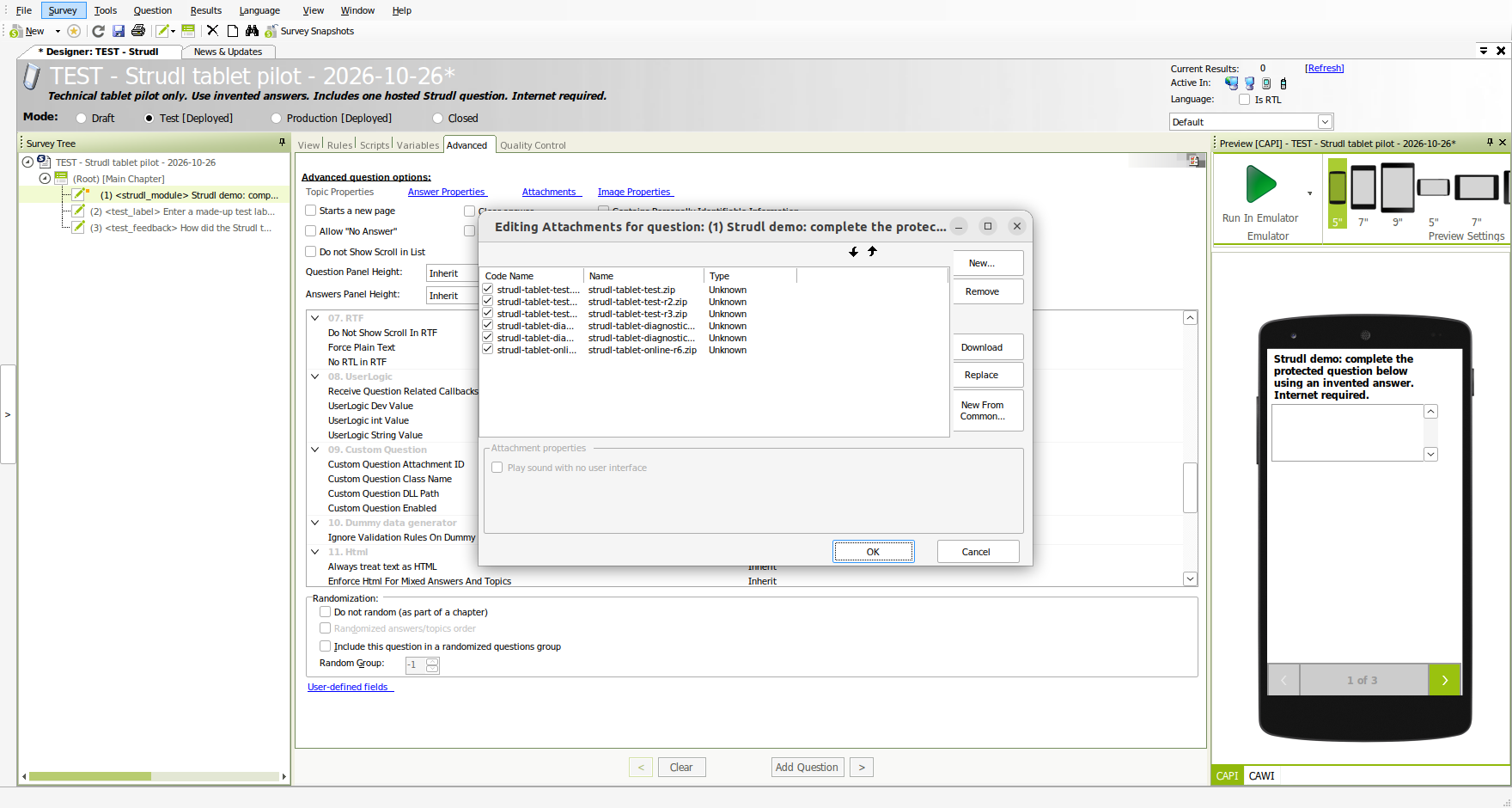
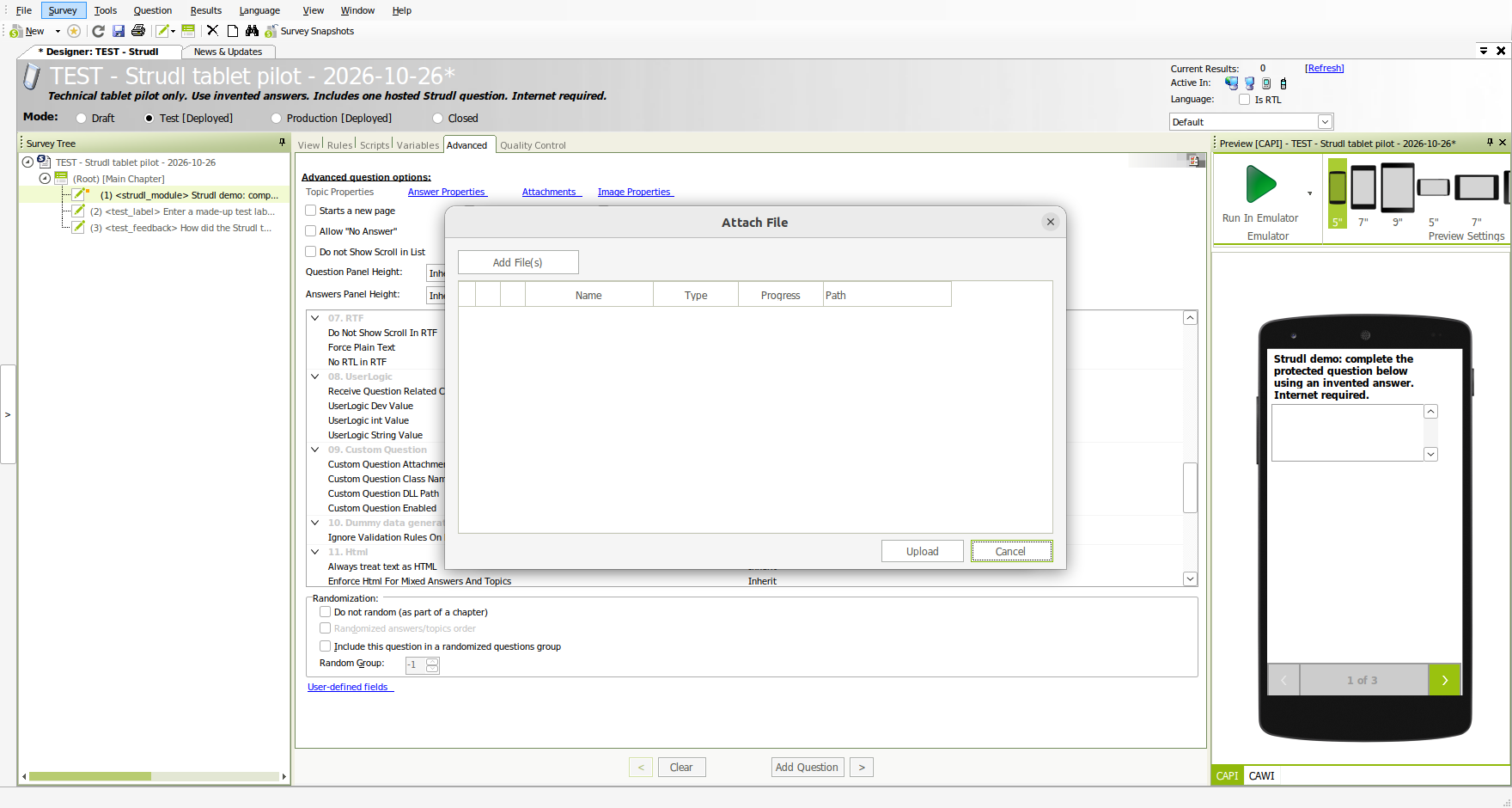
- Select the question. Open Advanced → Attachments → New → Add File(s). Select strudl-surveytogo-online.zip, click Upload, then OK.
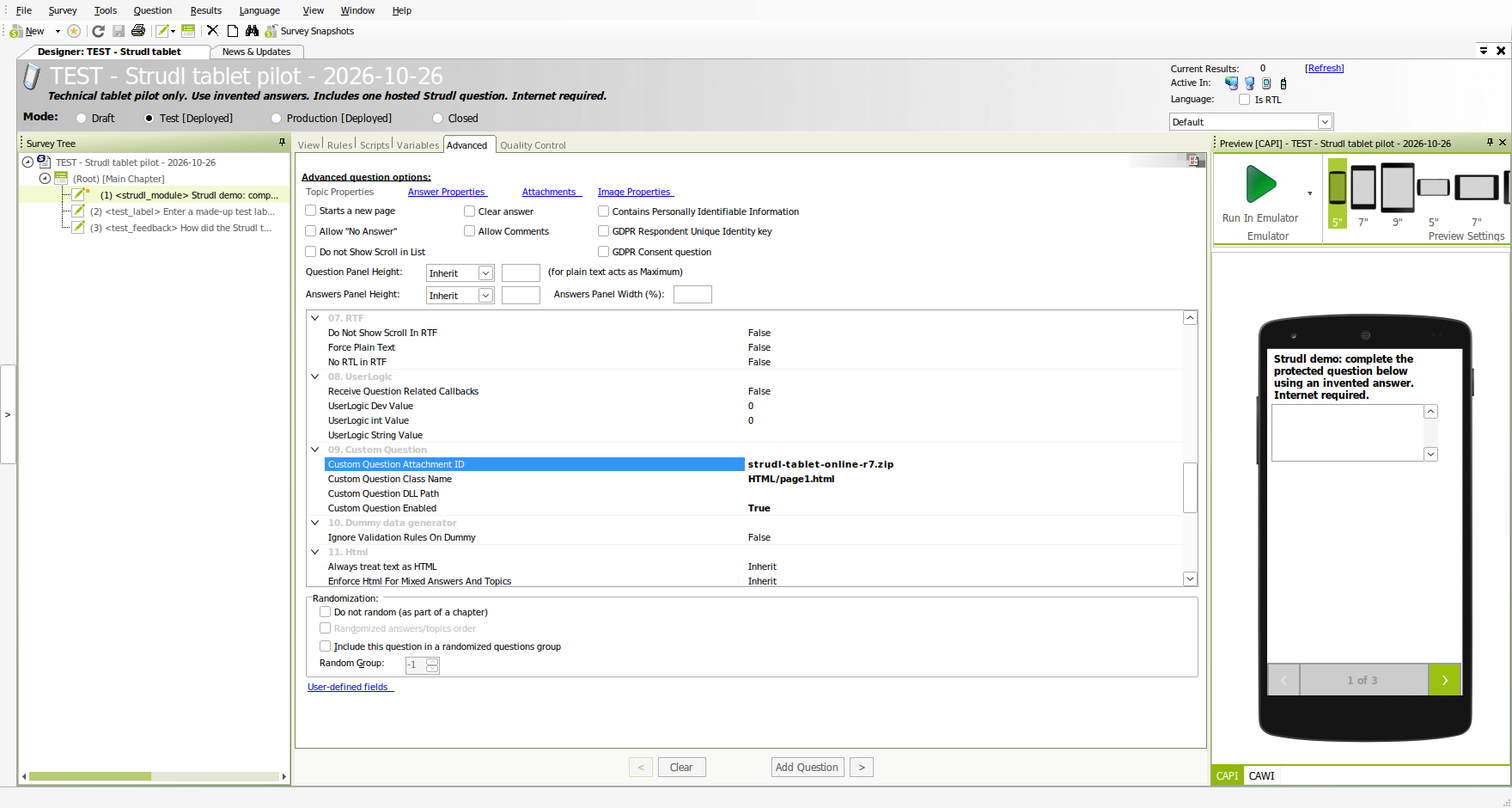
- Under Advanced → 09. Custom Question, set Attachment ID to that ZIP, Class Name to HTML/page1.html, leave DLL Path empty, and set Enabled to True. Set Hide/Show Attach Button to True.
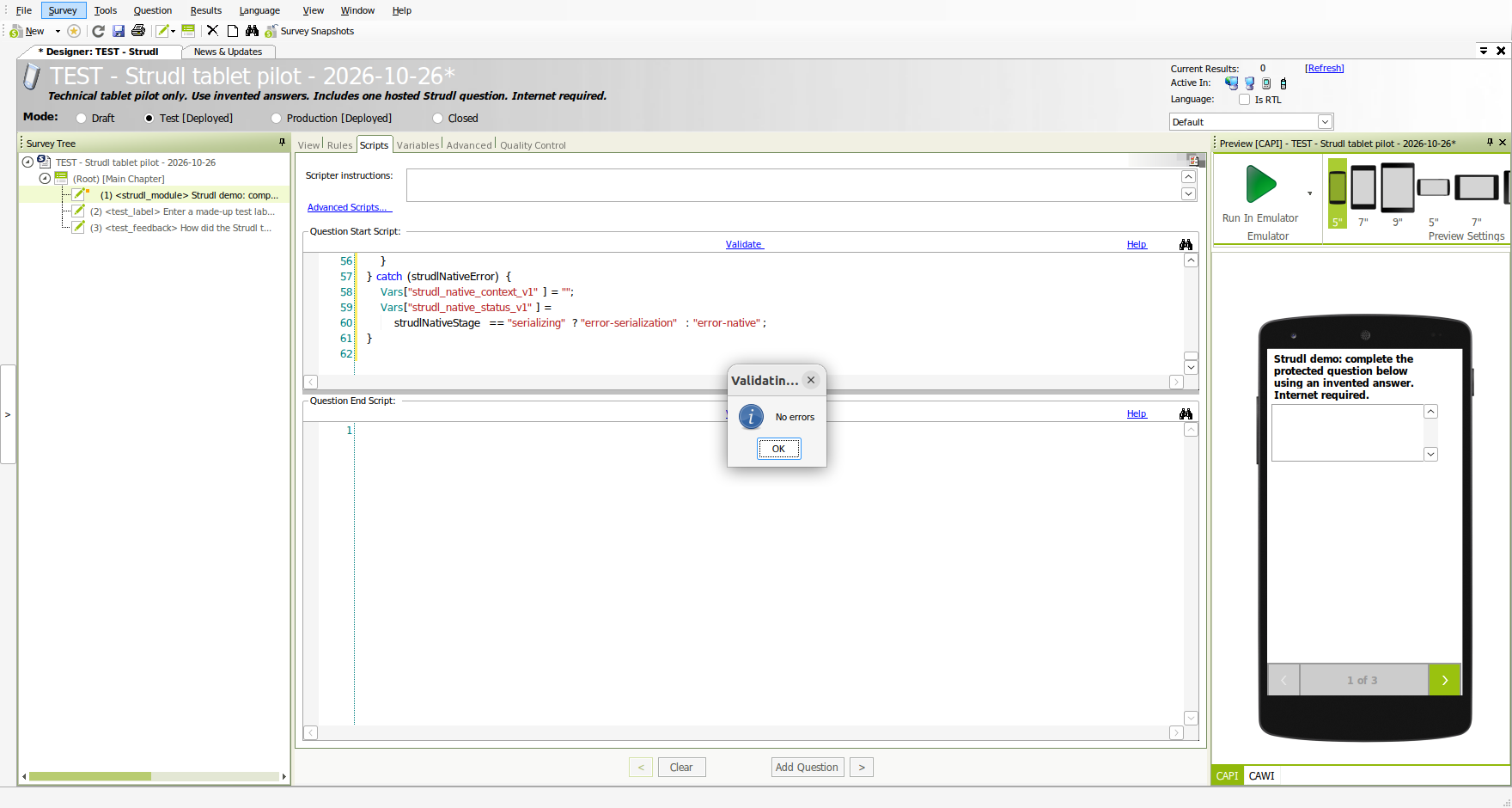
The screenshots below are real Studio captures from 29 October 2026. They show the older pilot filename and historical result count. Select your newly downloaded ZIP instead; the blank CAPI preview is not the Android respondent screen.
Show attachment screenshots
3. Install the native scripts and completion rule
- In the module question’s Scripts tab, paste native-start.js into Question Start Script. Click Validate and resolve any errors before continuing.
- Add native-helper.js to the survey’s Advanced Scripts section once. Preserve any existing functions. This defines StrudlComplete.
- In the module question’s Rules tab, add the validation condition below and set its warning type to Hard. The condition is true when the module is incomplete, so it must block Next.
!StrudlComplete(Answer(CurrQues))Use the message: Complete the voice question before continuing. A required field alone is insufficient because resume data is saved before the module finishes. completion-rule.txt contains the exact rule and message.
4. Save, assign and test on Android
- Save in Studio and confirm the unsaved-change asterisk disappears. Keep the survey in Test mode during the pilot. Preserve old attachments needed by existing interviews.
- Have a project administrator assign your surveyor account to the project and survey. A permissions error in Surveyors requires an administrator; moving the survey is not a substitute. Synchronize the Android app.
- Start a test interview while connected. Open the voice question and answer with invented data. Confirm Next is blocked before completion and works afterward.
- Return to the completed question, then close and reopen the app. The same interview must retain its recorded answers. Test a second interview, a network interruption, and the full multiquestion export before fieldwork.
5. Resume the same interview safely
The local package opens an HTTPS page inside the question. voice saves each recorded checkpoint in the device’s browser journal, then mirrors it into the native answer. Reopening reuses that record; it does not draw a new protected answer.
After losing internet, restore the connection and use Retry connection. If the old page stays stuck, fully close and reopen the app while connected, then reopen the same interview. Do not clear app data, change integration codes, or start a replacement to recover a saved answer.
If a saved journal is missing or conflicts with the native answer, preserve the device and contact the study operator. Another device cannot be assumed to restore the interview. Withdrawal from voice does not delete copies already held in SurveyToGo or analysis files.
6. Export and extract the recorded answers
Finish the surrounding SurveyToGo interview and synchronize it. voice completion alone does not submit the native interview. A zero local completed count can mean interviews have already uploaded; check Uploaded history and Studio’s exported rows.
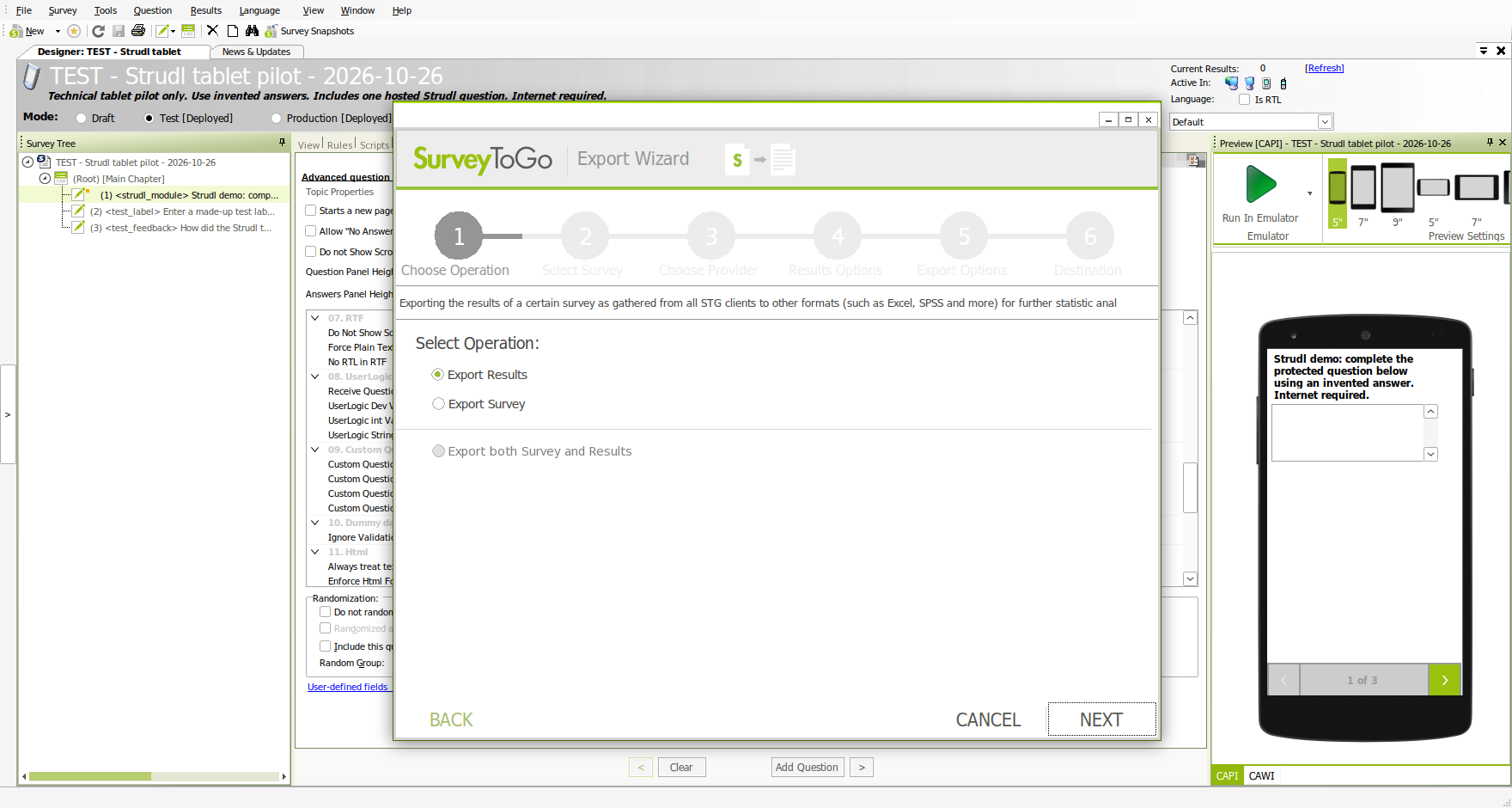
- Refresh Studio’s results. Choose Survey → Export → Export Results, not Export Survey. Include the applicable Test/Production modes, dates and approval statuses. Export the full strudl_module text and only the native ID columns needed for analysis.
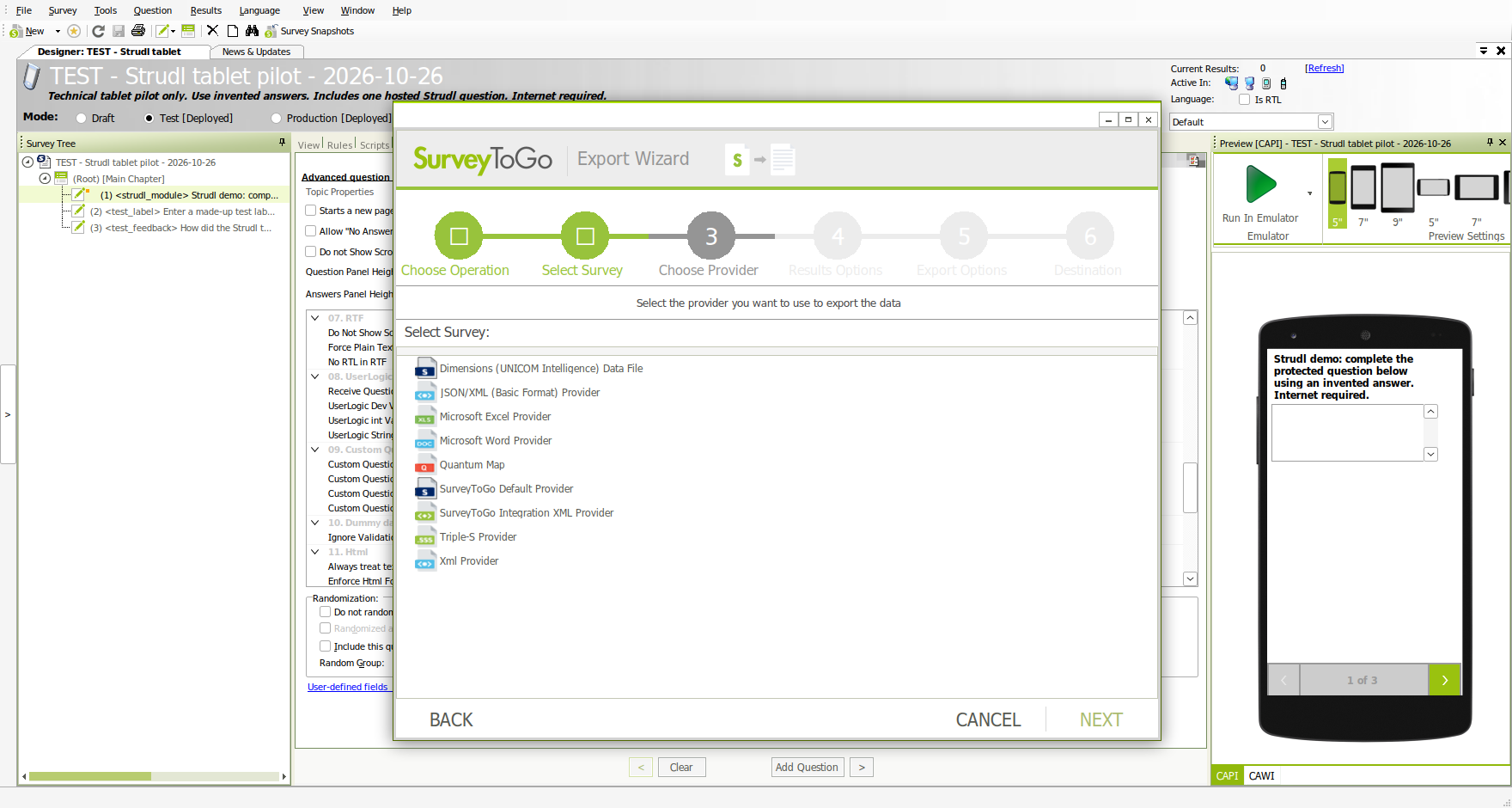
- Use a CSV export that preserves the complete quoted JSON cell, or the JSON/XML (Basic Format) XML export used in the pilot. For that XML schema, add --format surveytogo-xml and use SubjectID as the native ID column. Other export formats require an explicit conversion; do not rename XML to CSV.
- Run the included extractor locally with Python 3.10 or later. Replace the field name, publication UUID and native ID column with the exact names in your export and questionnaire-codebook.json. On Windows, py -3 can replace python3.
Show results-export screenshots
python3 extract_results.py native-results.csv \
  --module strudl_module=PUBLISHED-SURVEY-UUID \
  --id-column interview_id \
  --output recorded.jsonl \
  --status-output module-status.jsonl
python3 extract_results.py native-results.xml \
--format surveytogo-xml \
--module strudl_module=PUBLISHED-SURVEY-UUID \
--id-column SubjectID \
--output recorded.jsonl \
--status-output module-status.jsonlThe extractor validates completion, publication, versions, report types and duplicate IDs. It writes recorded values and the selected native identifiers, excluding resume credentials and the raw envelope. Inspect the separate status file for incomplete, empty or invalid modules.
Multiple questions in one module
All answers are in JSON.parse(nativeAnswer).result.reports. Each report uses the voice question ID, not a Studio question number. The extractor produces one row per recorded report; it does not create extra native questions.
"reports": [
  {"question": "first", "reported": 0, "event_id": "RUN-UUID:first"},
  {"question": "last", "reported": 1, "event_id": "RUN-UUID:last"},
  {"question": "comment", "skipped": true, "event_id": "RUN-UUID:comment"}
]
Use questionnaire-codebook.json to match question IDs and choice indexes to the exact published labels. Index 0 means the first option, not necessarily No. A protected report is the recorded, potentially garbled choice; the original choice cannot be recovered.
| Report field | How to read it |
|---|---|
reported: 0 | A real recorded category: the first authored option. |
skipped: true | An explicit skip. A question absent from reports has no recorded answer; do not convert it to No or zero. |
number: nulltext: ""multiple: [] | A submitted blank number, empty text or empty selection. Keep these distinct from an absent report and an explicit skip. |
Multiple separate voice modules
Add one --module FIELD=PUBLICATION-UUID argument per native module column. Keep module_field, survey, run_id and question together when joining or pivoting: two modules can both contain a question named q1. Validate uniqueness before creating wide columns.
--module strudl_module=FIRST-PUBLICATION-UUID \
--module second_module=SECOND-PUBLICATION-UUID
Before fieldwork, export a complete multiquestion test and compare every recorded report, including the first and last, with voice’s recorded result. Check full text length and duplicates. The one-question pilot does not establish your device’s maximum answer size.
Need offline collection instead?
Use the separate questionnaire-specific export from the voice editor. Disconnecting this online wrapper does not switch it to offline mode, and its saved interview cannot be transferred into the offline package.
Offline SurveyToGo deployment guide